
What does your computer desktop look like right now? Do you have more than 20 icons? 30? How easily can you find what you need?

Your computer desktop (the main screen that shows when you start up your computer) should be neat and organized, ideally with no more than 1/3 of your screen filled with icons. You can compare your computer desktop to your actual desk. Unless your desk or desktop are organized and free of clutter, you’ll have a much harder time getting your work done.
First, think about the reasons you have for using your computer. Is it a work only laptop? Do you use it for personal reasons? Make sure to create folders to house the different areas of your life and keep files separate. For instance your desktop might contain folders titled: Personal, Work, School Work.
Within the Personal folder you might have sub-folders for Finances, Grocery Lists, Photos, and/or Hobbies. Work might have sub-folders for different projects you’re working on, or if you need to keep files for a long time, you might have a folder for each year. This is up to you. The idea is to make sure that your folders are specific enough for you to find what you need, but general enough that you don’t end up with hundreds of folders to sift through.
For step one of ‘Conquer your Computer’ spend some time on your desktop. Do you notice any patterns? How much of what is on your desktop can you move to the trash?
Take some time to create folders that will encompass areas of your life that are on your PC. Move everything that is on your desktop into one of those folders.
How to:
- To create a folder, right click anywhere on your screen that is empty. Don’t click on an icon. In the menu that appears, hover over ‘new’, and select ‘folder’ to create a folder on your screen.
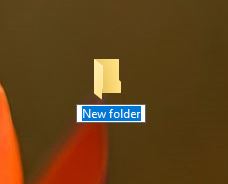
- To name or rename the folder, right click on the folder icon you just created and select ‘rename.’
- To move an icon into a folder, click and hold the icon you want to move and then move your mouse to drag the icon. Drag the icon on top of the folder you want to move it into. Make sure the folder is highlighted, or you see an icon appear that says ‘move to folder name‘ before you release your button.
 Practical Computer Lessons for Everyone